A grade reaches Moodle only when grade sync is on, the student has opened Dakota from your Moodle course, and the student has a recorded result. Check these in order.
Steps
- Is grade sync on? In your Dakota class, open Settings > Moodle course connection and check Grade sync is On. If you just turned it on, give it a little time to catch up.
- Has the student opened Dakota from this Moodle course? They need to do this at least once, so Dakota can link their accounts.
- Is the student on your Dakota class list with their Moodle email? Check the Students tab. If not, add them: see How do I add students to my class?
- Is the assignment published and assigned to them?
- Do they have a recorded result? Coursework records a result when the student meets all the objectives, or when the due date passes. Wiring or running the simulation alone doesn’t record a grade.
- Check the delivery status in Dakota. Open the assignment and look beside the student’s name. If an update failed, choose Retry delivery. If there’s a conflicting grade, choose Review grade and follow the guidance before replacing the Moodle grade.
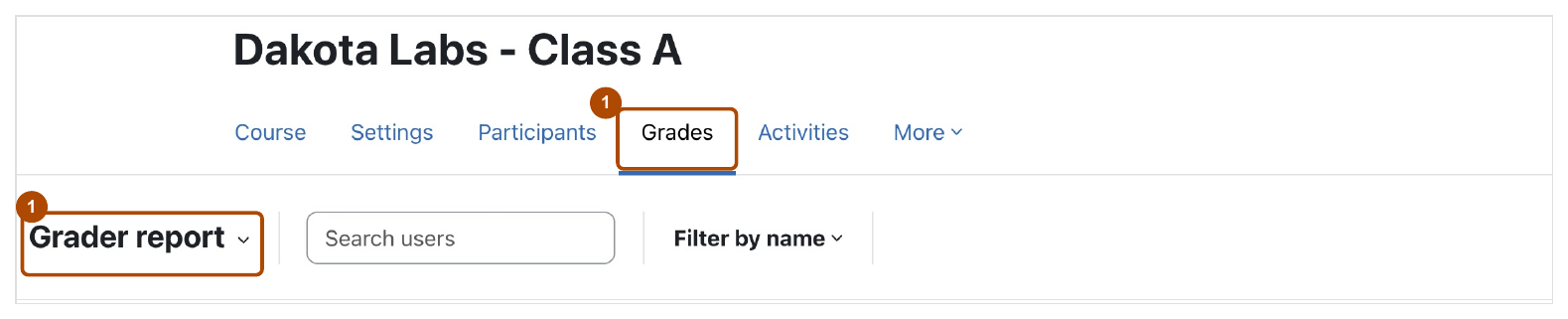
Check: In Moodle, open Grades > Grader report. The right student and assignment show the expected points. For example, 100% in Dakota on a 40-point activity shows 40/40.
Common problems
- The general Dakota Labs row has no grade. That row is the activity students use to open the class. It isn’t graded, so a blank is normal.
- The grade in Moodle is different from Dakota. Someone may have changed it in Moodle. Changes in Moodle don’t change Dakota.
- The points look wrong. Dakota-created columns are out of 100. An assignment’s own Moodle activity uses the maximum you set there.