Click Feedback at the top of any page to send a report straight to our team. For sign-in or account problems, or to send a screenshot, email support@dakotaprep.com.
Steps
-
Click Feedback in the top bar. It’s on every page, including the Lab Builder and on phones.

Click Feedback at the top of any page. -
Under What kind of feedback is this?, choose one:
- Something is broken
- Wiring or physics is wrong
- Confusing or unclear
- Feature request
- Content error
- Other
- Change a lab or lesson (instructors only)
-
Under What happened?, say what you were doing, what you expected and what happened instead. Write at least 10 characters.
-
Click Send feedback.
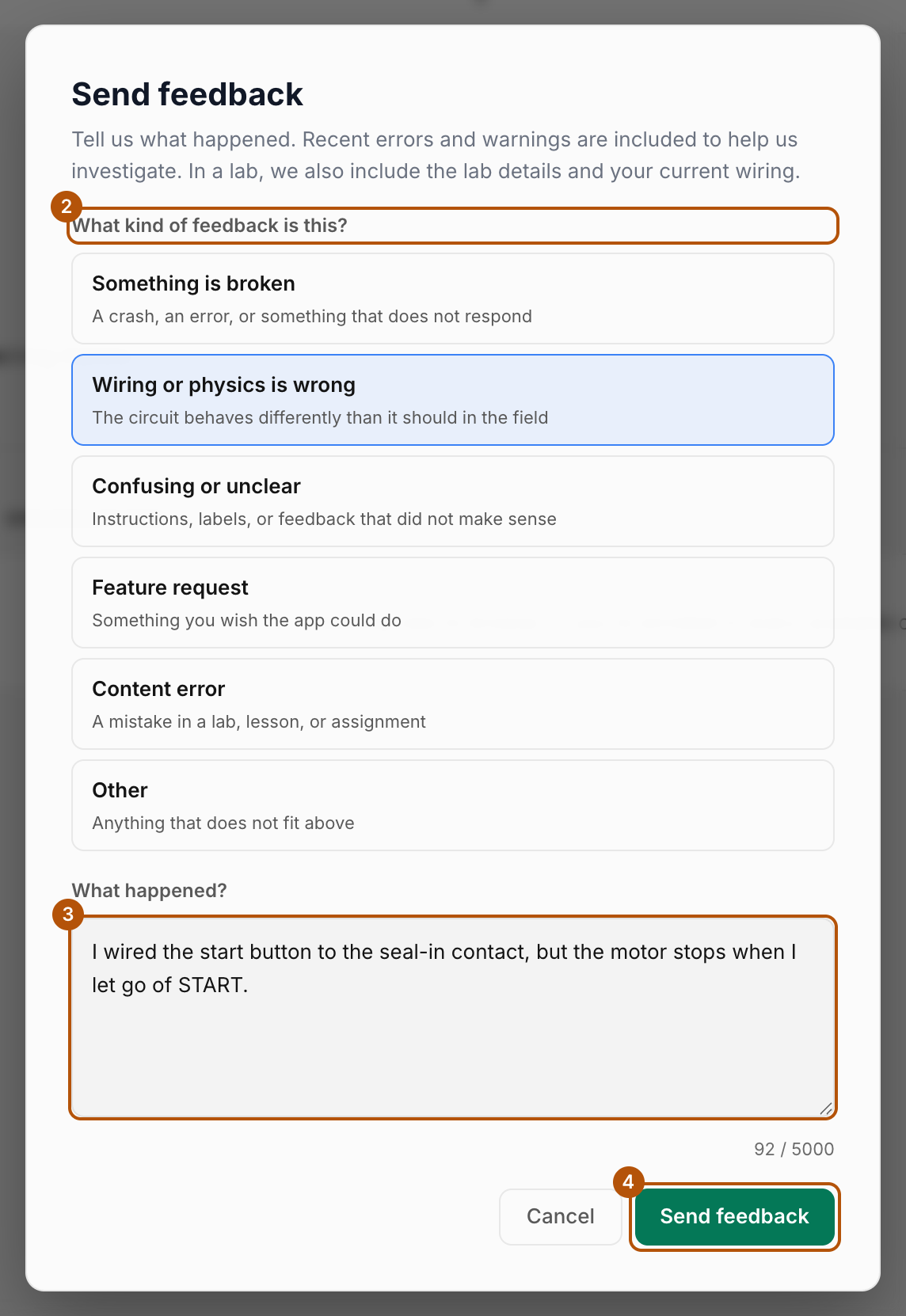
Choose what kind of feedback it is, describe what happened, then click Send feedback.
What’s included automatically
Recent errors and warnings are attached to help us investigate. If you send feedback from inside a lab, we also include the lab details and your current wiring, so you don’t need to describe the board. You can’t attach files, so email screenshots to support@dakotaprep.com.
Instructors: asking for a lab or lesson change
Choose Change a lab or lesson, then fill in:
- Which lab or part?
- What does it do now?
- What should it do instead?
- Why should it change?
What happens next
Your report goes to the Dakota Labs team. When we make a change because of your report, we email you a note titled “Update on your report”.
Common problems
- The Send feedback button is greyed out. Choose a feedback type and write at least 10 characters.
- “You have sent several reports just now.” Wait a few minutes, then send again.
- “Something went wrong sending your feedback.” Try again. If it keeps happening, email support@dakotaprep.com.
- I can’t sign in, so I can’t reach Feedback. Email support@dakotaprep.com.