Sign in with the same email address your instructor used to add you to the class. The first time you sign in, Dakota asks a few questions about you, then takes you to your class.
Steps
-
Go to labs.dakotaprep.com. If you aren’t signed in, you’ll land on the sign-in page.
-
Choose how to sign in: with Google, with Apple, or by typing your email address.
-
If you used your email address, check your inbox for a 6-digit code and type it in.
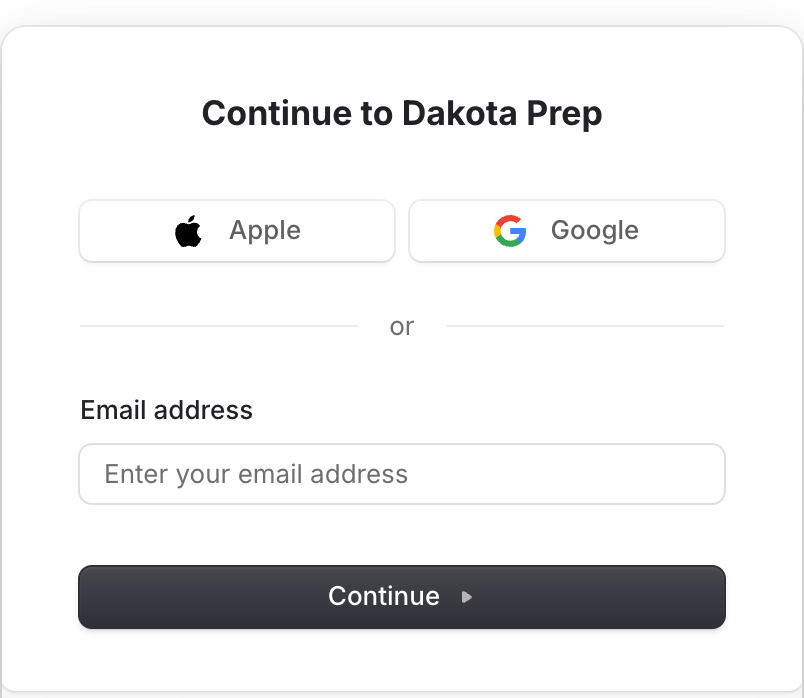
Sign in with Apple, Google or your email address. Use the email your instructor added. -
The first time you sign in, you’ll see Welcome to Dakota: “Tell us a bit about yourself so we can tailor your learning path.” Fill in:
- Name (first and last name)
- School (if you aren’t enrolled anywhere, type “N/A”)
- Region
- Current knowledge level
- Where did you hear about us?
-
Press Continue. Pressing it means you agree to the Terms and Privacy Policy.
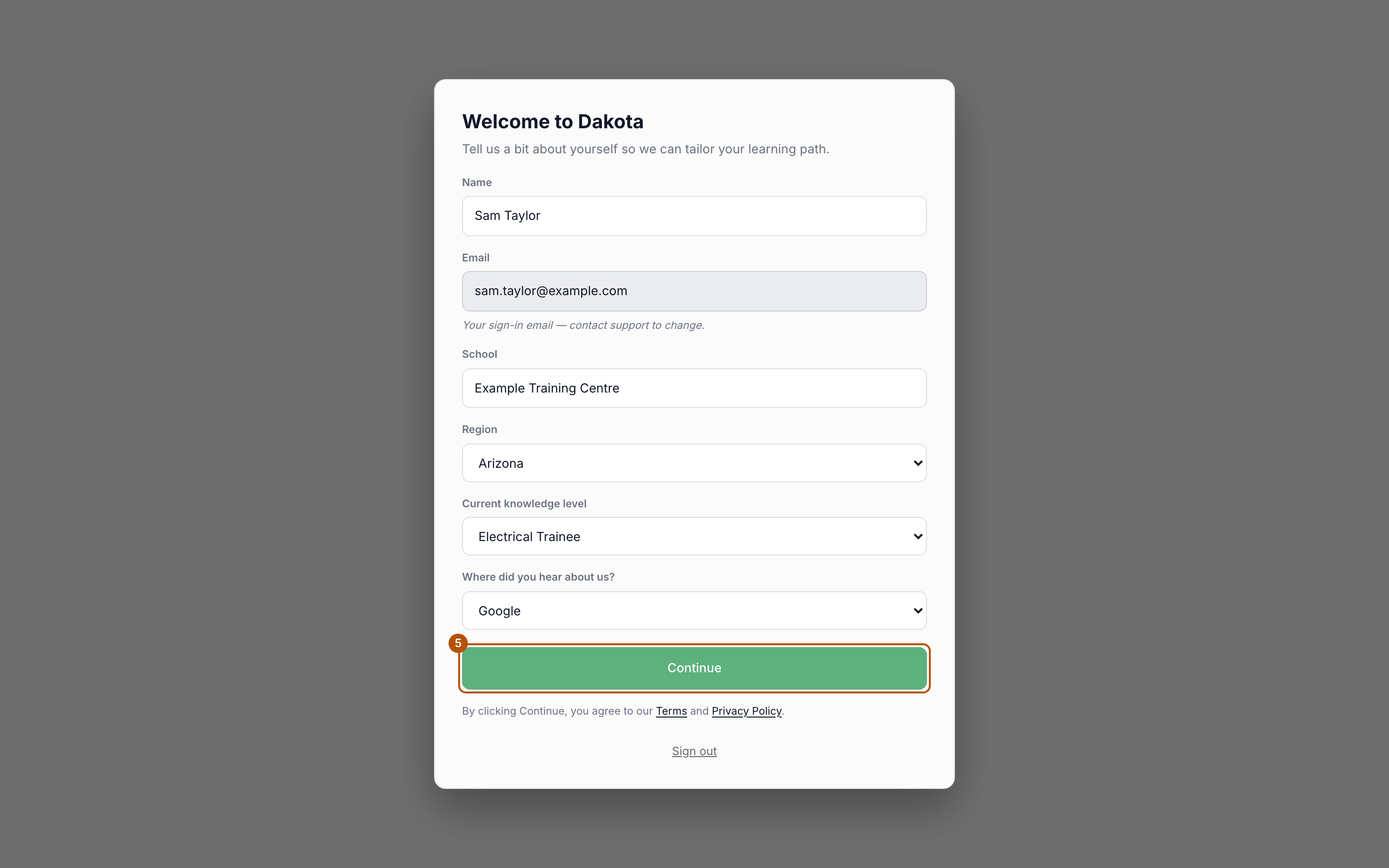
The first time you sign in, fill in each field and press Continue.
Opening Dakota from Moodle? You’ll see Email me a code instead. Press it, type the 6-digit code from your email, and press Continue. If the code didn’t arrive or has run out, press Send a new code.
Common problems
- I signed in but see no class. You probably used a different email from the one your instructor added. See I can’t see my assignment. What do I do?
- “That code isn’t right.” Check the newest email from Dakota and type the code again.
- “That code has expired.” Press Send a new code.
- “Too many tries.” Wait a minute, then send a new code.
- I want to change my email. The Email field on your profile can’t be edited. Email support@dakotaprep.com to change it.
- Shared or school computer. Sign out when you’re done, so the next person doesn’t open your account.