If your instructor uses Moodle, you open Dakota from your Moodle course. There are two kinds of Dakota activity:
- Dakota Labs (or a similar name) opens your class, where you pick an assignment.
- An activity named after an assignment, like Ohm’s Law, opens that assignment directly.
Steps
-
Open your Moodle course.
-
Choose the Dakota Labs activity, or the activity named after your assignment.
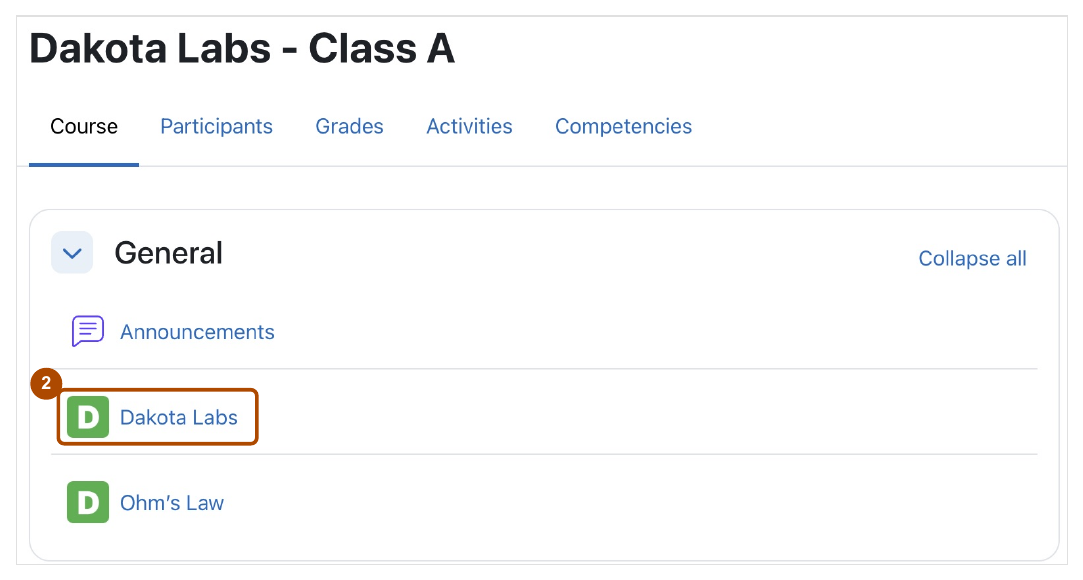
Choose the Dakota Labs activity (2). An activity named after an assignment, like Ohm's Law, opens that assignment directly. -
Choose Open in new window or Open Dakota if you see them.
-
If Dakota asks you to sign in, check the email shown matches your Moodle email, then choose Email me a code and enter the six-digit code from your email. See How do I sign in to Dakota Labs?
-
If Dakota asks you to complete your profile, fill in each field and choose Continue. You only do this once.
-
On your class page, choose the assignment your instructor gave you.

Check the class name (1), then choose your assignment (2).
Check: Your assignment opens. If you opened an activity named after an assignment, its title matches the one you chose in Moodle.
When you finish
- On the results screen, choose Back to Dashboard (or Back to course if you came from an assignment activity) to return.
- To see your grade in Moodle, go back to your Moodle window, open Grades in the same course and find the assignment. It can take a little time to appear. Your instructor decides whether grades are sent to Moodle.
Common problems
- Dakota says a different account is signed in. See Dakota says I’m signed in to the wrong account. What do I do?
- No assignments show up. See I can’t see my assignment. What do I do?
- Nothing happens when you open the activity. Your browser may have blocked the window. Allow pop-ups for your Moodle site and try again.
- Dakota says the class isn’t set up. Your instructor needs to finish connecting the course. Let them know.