Yes. When you open a lab from an assignment in your class, Dakota saves your wiring as you go, along with the parts you placed and your chat with Dakota AI. Come back any time and pick up where you left off.
Steps
-
Leave whenever you need to. Use the back arrow at the top left, or just close the tab.
-
To come back, open your class and find the assignment. The row now reads Resume.
-
Open it. Your wires and parts are where you left them.
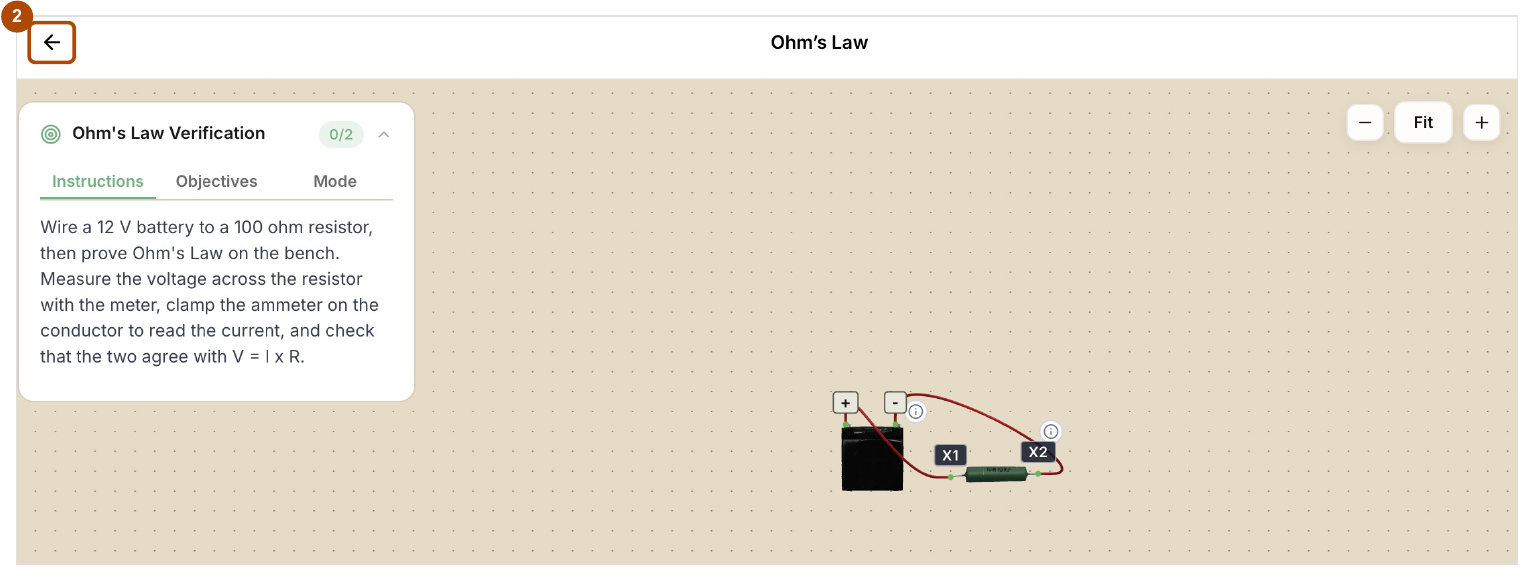
Open the assignment again and your wires and parts are where you left them. The back arrow (2) takes you back to your class. -
Run the simulation again if you need it. Switches and the simulation don’t stay running while you’re away.
Check: Your board looks the same as when you left.
Common problems
- “Wiring progress was not saved.” Your connection dropped or the save was refused. Stay on the page. The next save that works clears the message. If it keeps showing, reload the lab.
- “This assignment now points to a different lab version.” Your instructor changed the lab. Reload the assignment before you keep going.
- Debug lab: “Your latest wiring was not saved because it exceeds the Debug Lab removal limit.” Put back a wire you removed, or reset the lab.
- I opened a lab from Explore and my work is gone. Work saves only for labs opened from a class assignment.
- Timed exam: leaving doesn’t pause the timer.