After you register Dakota Labs, check three groups of settings: how instructors find it, the grade and roster services, and what Moodle shares. Keep the connection addresses and keys that registration filled in.
Steps
-
In Manage tools, open the Dakota Labs tool’s pencil icon.
-
Set how instructors find the tool:
- Tool configuration usage: Show in activity chooser and as a preconfigured tool
- Default launch container: New window
- Supports Deep Linking (Content-Item Message): ticked

Set Tool configuration usage (1) and Default launch container (2), and tick Supports Deep Linking (3). -
Expand Services and set:
- IMS LTI Assignment and Grade Services: Use this service for grade sync and column management
- IMS LTI Names and Role Provisioning: Use this service to retrieve members’ information as per privacy settings
- Leave Tool Settings as it is.
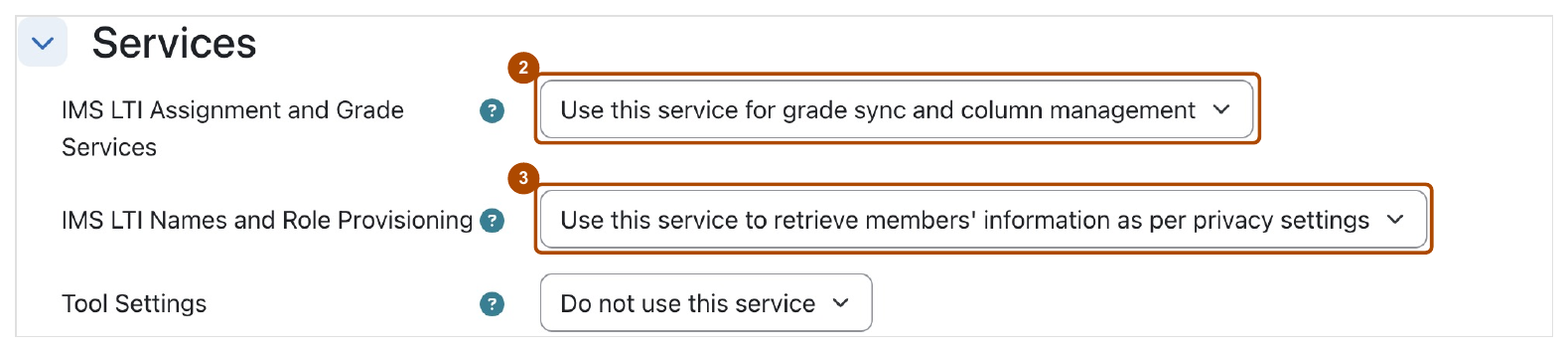
Under Services, set the grade service (2) and the names and roles service (3). Leave Tool Settings as it is. -
Under Privacy, set:
- Share launcher’s name with tool: Always
- Share launcher’s email with tool: Always
- Accept grades from the tool: Always
-
Scroll to the bottom and choose Save changes.
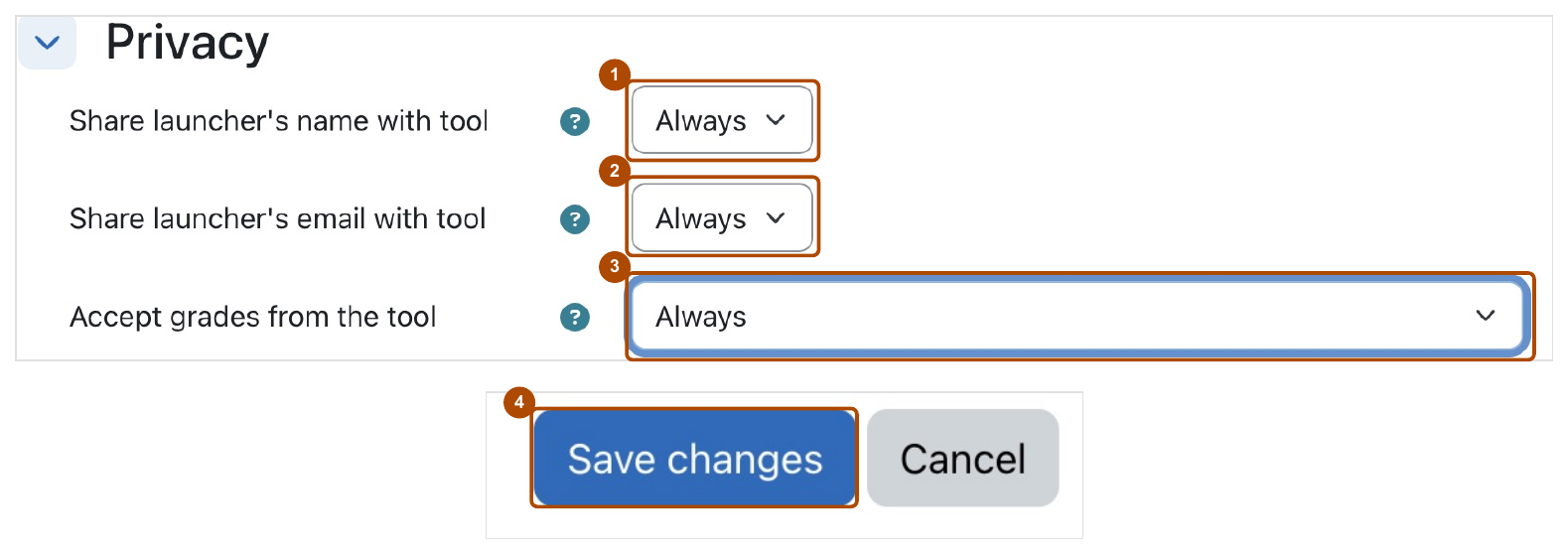
Under Privacy, set all three to Always (1 to 3), then choose Save changes (4). -
Go back to Manage tools and check that Dakota Labs shows Active.
Check: Dakota Labs is active and appears in the activity chooser when an instructor adds an activity to a course.
Why these settings
- New window: Dakota opens in its own window, which browsers’ privacy settings handle more reliably than an embedded frame.
- Deep Linking: lets instructors use Select content to link one Moodle activity to one Dakota assignment.
- Grade services: lets Dakota create gradebook columns and send grades. Each instructor still chooses whether grades are sent, class by class, with Grade sync.
- Name and email: Dakota matches each person to their Dakota account by email. Without the email, nobody can sign in from Moodle.
Common problems
- Instructors can’t find Dakota Labs in the activity chooser. Check Tool configuration usage is set to Show in activity chooser and as a preconfigured tool.
- Select content doesn’t work. Check Supports Deep Linking is ticked.
- Grades don’t arrive. Check Accept grades from the tool is Always and the grade service is turned on. Then see Why isn’t a grade showing in Moodle?