You register Dakota Labs once for your whole Moodle site, using the registration link Dakota sends you. Dakota uses LTI 1.3 (LTI Advantage), so there is no consumer key or shared secret to type in.
Before you start
- You need administrator access to Moodle.
- You need the registration link Dakota sent you. Use that link, not a Dakota website address. It works once and does not expire.
- You do not need a Dakota account.
Steps
-
In Moodle, open Site administration.
-
Search for Manage tools and open it. (You can also go to Plugins → Activity modules → External tool → Manage tools.)
-
Paste the registration link from Dakota into Tool URL.
-
Choose Add LTI Advantage. Don’t choose Add Legacy LTI or configure a tool manually.
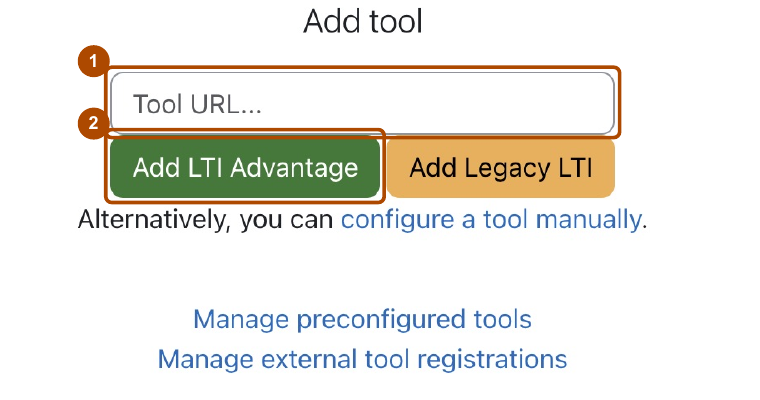
Paste the registration link into Tool URL (1), then choose Add LTI Advantage (2). -
Follow any registration prompts, then return to Manage tools.
-
Find the new Dakota Labs tool. It shows Pending. Choose Activate.
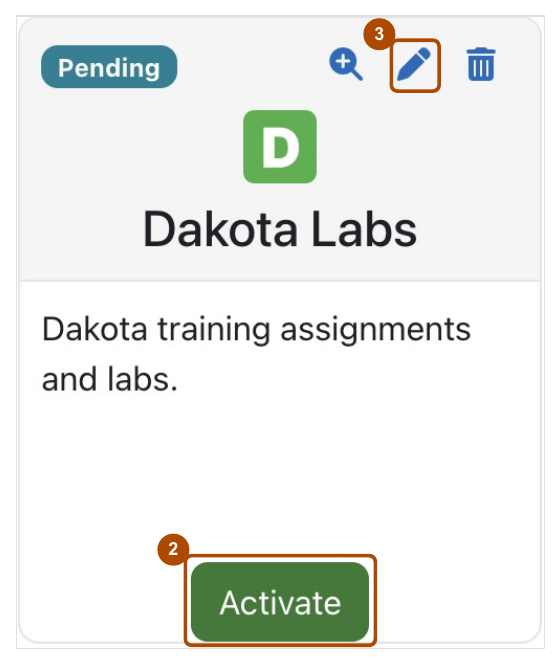
The new tool shows Pending. Choose Activate (2). The pencil icon (3) opens its settings.
Check: The Dakota Labs tool shows Active.
Next, check the tool’s settings: see Which Moodle settings does Dakota need?
After setup
- Registering the tool doesn’t give anyone access to Dakota. Instructors still need a Dakota instructor account with the same email as their Moodle account.
- You can add a Dakota Labs activity to a course for an instructor: add it with no content selected and choose Save and return to course. The instructor opens it later to connect their Dakota class.
- Your site may show the tool under a different name if you rename it. That’s fine.
Common problems
- Moodle offers to update an existing installation. If you’re not sure which one to use, stop and email support@dakotaprep.com.
- Registration doesn’t finish. Email support@dakotaprep.com. We may send you a new registration link.
- The tool stays Pending. Choose Activate on the tool card in Manage tools.