Click Invite Team on your organization’s page, enter the person’s email and send the invite. To remove someone, open the menu on their row and choose Remove from org.
Manager or instructor?
- Instructor: can create classes, assign labs and invite students.
- Manager: the same as Instructor, plus can invite other instructors to the organization. Managers also see the Usage tab and can edit the organization’s details.
Add an instructor
-
In the left sidebar, click Organizations, then click Manage on your organization’s card.
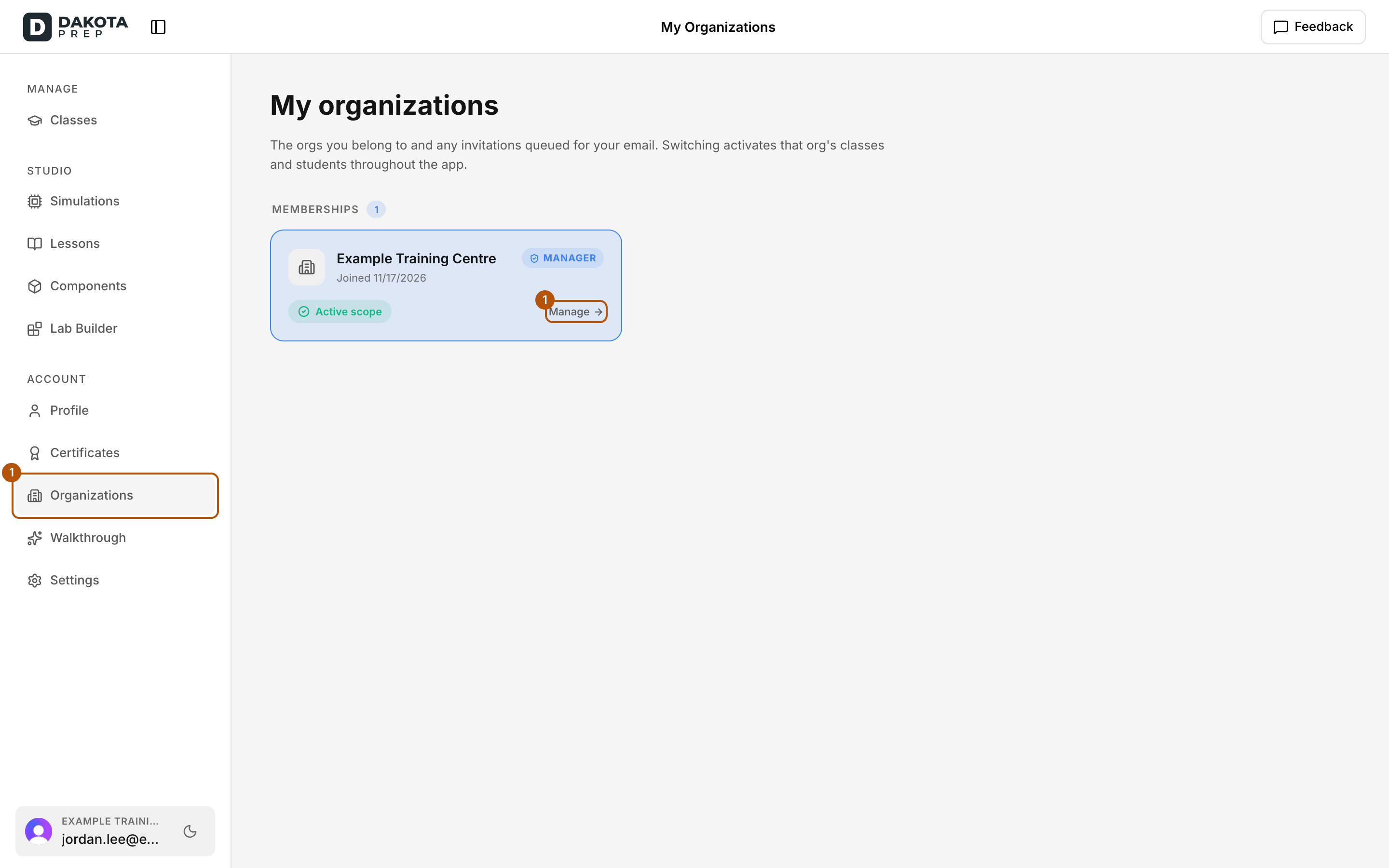
Open Organizations in the sidebar, then choose Manage on your organization's card. -
Click Invite Team at the top of the page.
-
Under Emails, type one or more addresses, one per line or separated by commas (for example instructor@example.com).
-
Under Role, choose Instructor.
-
Click Send Invite. If you entered several addresses, the button shows the number, for example Send 3 Invites.
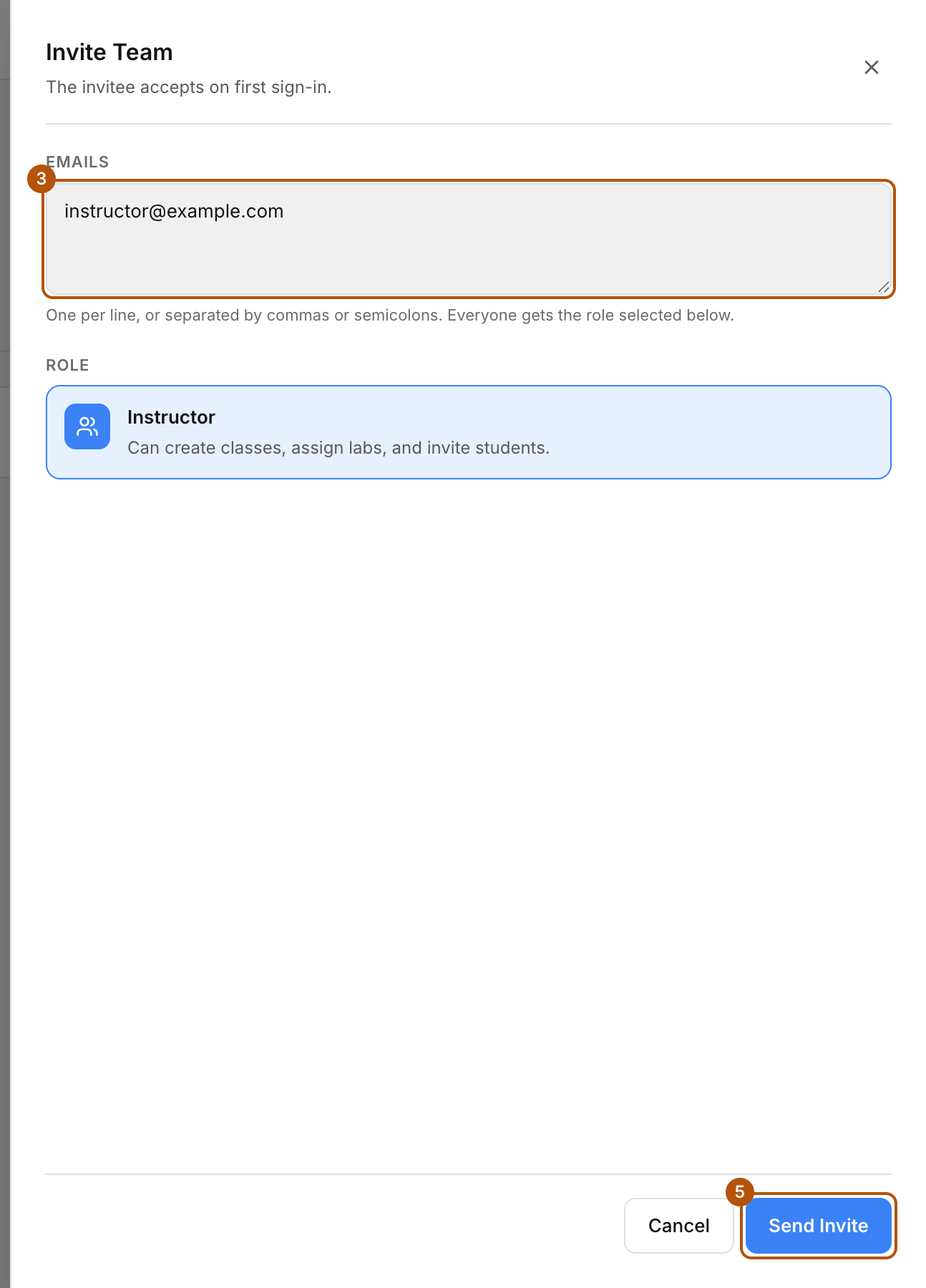
Enter one or more email addresses, choose Instructor under Role, then choose Send Invite.
Check: You see a confirmation that the invitations were sent.
- If the person already has a Dakota Labs account, they are added straight away and appear in the instructor list. They get an email titled “You’ve been added as an instructor at Example Training Centre”, and a You’re now an instructor banner the next time they open the app, with a View org button.
- If they don’t have an account yet, they appear under Invitations with the date you invited them. They join the moment they first sign in with that email address.
Remove an instructor
- On the Instructors tab, click the three-dot menu on their row.
- Choose Remove from org, then click Remove to confirm.
They lose access right away. You can invite them again later.
To cancel an invitation that hasn’t been accepted, click Revoke on it under Invitations. To send the email again, click Resend email.
Remove a student
- From one class: open the class, open the menu on the student’s card and choose Remove from class. The student’s past work is kept, and they appear in the Removed list.
- From the whole organization: if your organization has a Students tab, click Revoke on the student’s row and confirm. This removes them from every class in the organization. Their progress is kept.
Common problems
- Remove from org is greyed out. You see “Last manager cannot be removed.” Every organization needs at least one manager. To make someone else a manager first, email support@dakotaprep.com.
- There’s no Manager option when inviting. Only Dakota Prep can make someone a manager. Invite them as an instructor, then email support@dakotaprep.com and say who should become a manager.
- The invitee says nothing happened. Ask them to sign in with exactly the email address you invited. You can also click Resend email.
- Someone who only opens Dakota Labs from Moodle is still under Invitations. The invitation completes once they sign in to Dakota Labs directly with that email.