Open the assignment, open the student’s row and choose View work. You see their board read-only, next to the objectives they met and their best grade.
Steps
-
On the Assignments tab, open the assignment.
-
Open the student’s row in the list.
-
Choose View work.
-
Review the page:
- The student’s name, status and best grade.
- Objectives met: X of Y, with each objective ticked or not. The note beside it gives the score of the attempt those results came from.
- Their board, read-only. Choose Show answer key to draw the correct wiring over it, and Hide answer key to remove it. Install labs have no answer key overlay.
-
Choose Back to Roster to return.
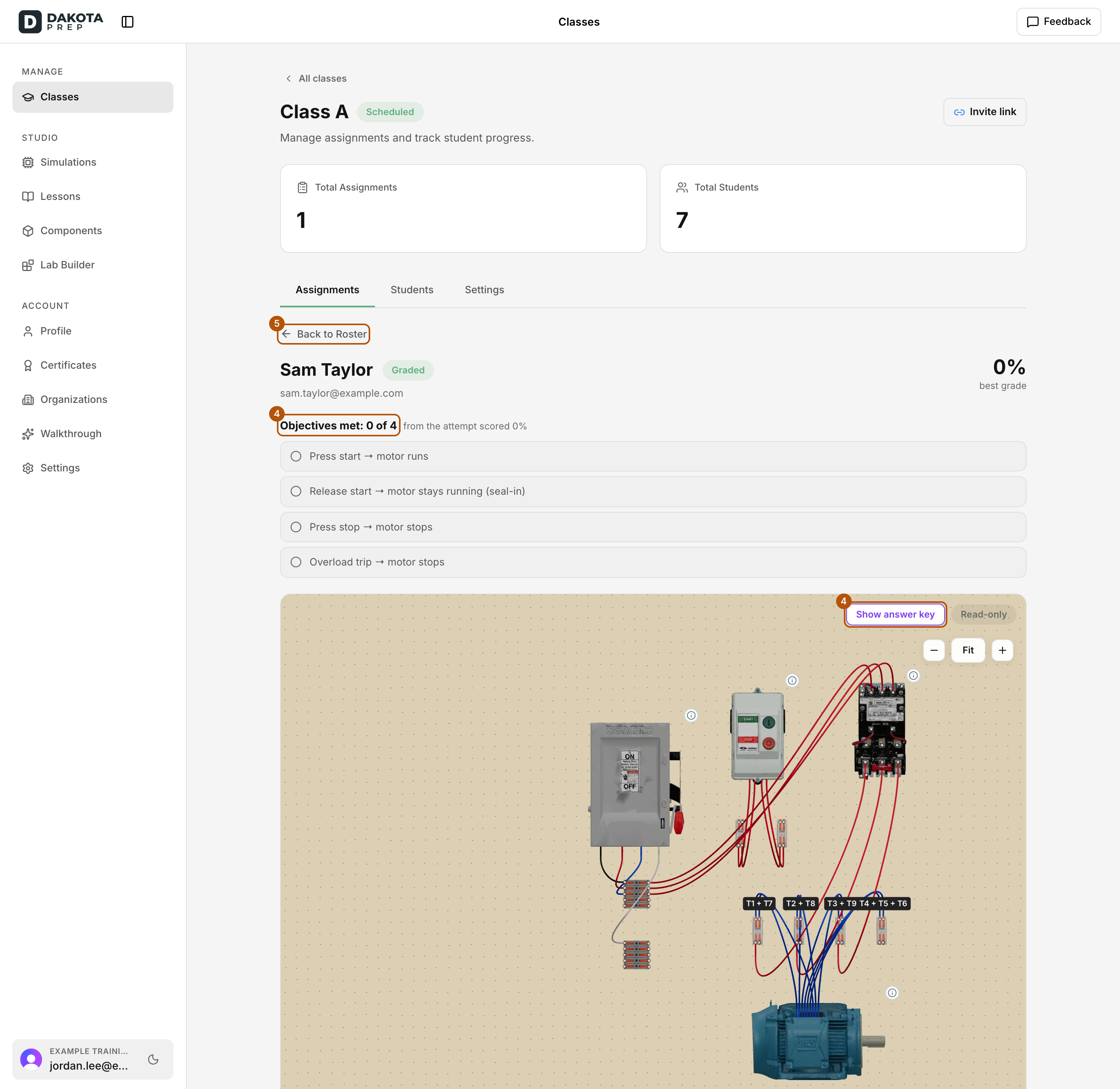
View work shows the objectives the student met and their board, read-only. Choose Show answer key to compare.
Other things you can do from the same row
- Due date override: give this student a different due date, then choose Save settings.
- Excused: tick it to excuse this student, then choose Save settings.
- Unassign: remove this assignment for this student only. Assign student gives it back.
- Grade now: score this student’s saved work.
You can also open a student from the Students tab to see all their assignments, and choose the eye icon (Preview student’s work) on any one.
Check: The student’s board opens with Back to Roster at the top.
Common problems
- View work isn’t there. The student hasn’t started yet, so there’s no board to show.
- The objectives list is missing. That attempt hasn’t been graded yet. Choose Grade now to score it.