Open Lab Builder in the sidebar and choose New lab. You can have Dakota build it from a description or a circuit diagram, or build it yourself. Then add the answer key and objectives, test it and Publish it.
Steps
-
In the sidebar under Studio, choose Lab Builder, then New lab.
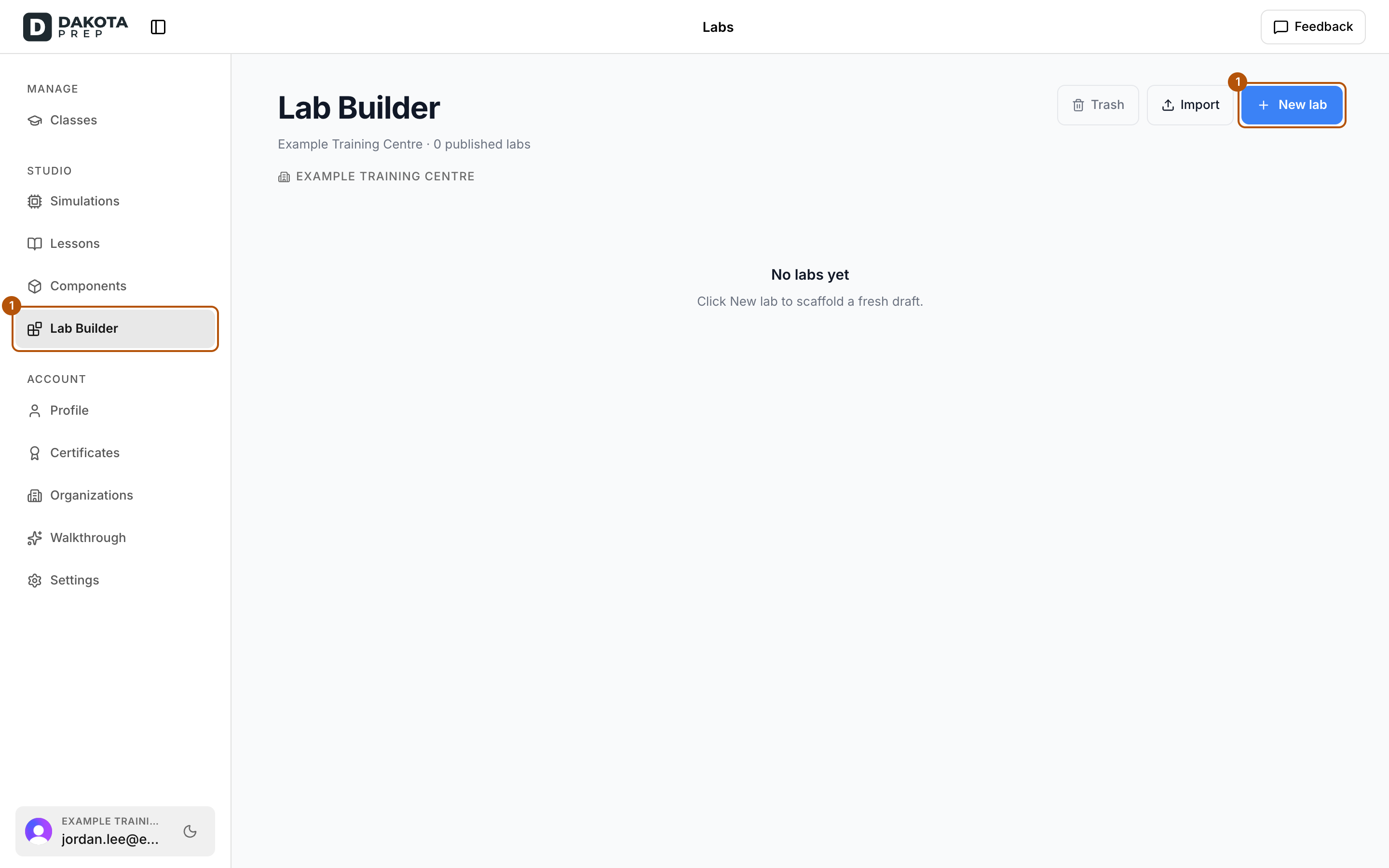
In the sidebar under Studio, choose Lab Builder, then New lab. -
On Let’s build your lab, choose one:
- Describe the lab you want, or choose Upload circuit diagram and attach a picture of it. Dakota builds the board, the objectives and a ladder diagram for you to review.
- I’ll build it myself: Dakota stays in a side panel in case you need it.
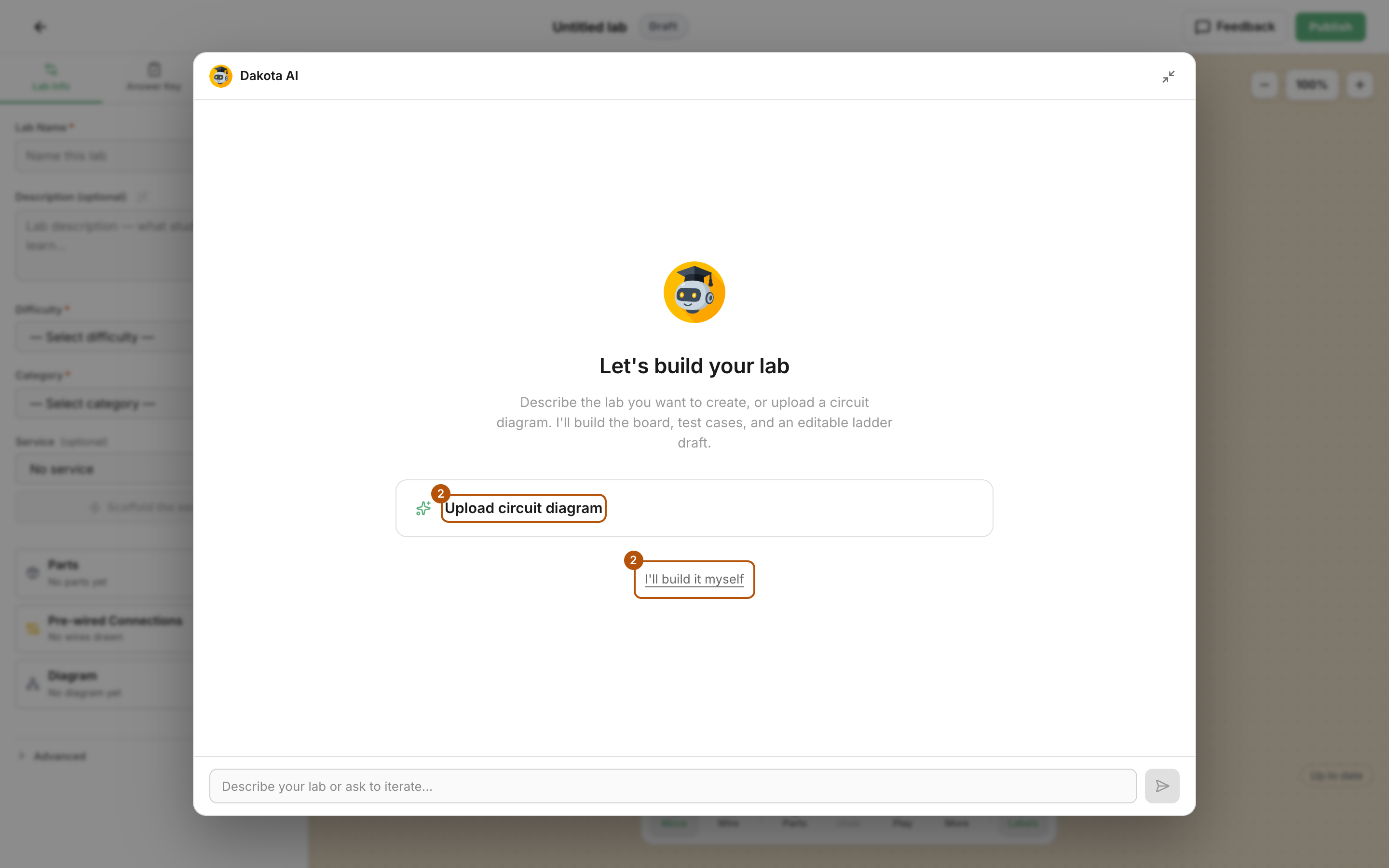
Describe the lab, upload a circuit diagram, or choose I'll build it myself. -
Add parts: choose Parts, tick the parts you need and choose Add to Canvas. Use Move to position them.
-
On the Lab Info tab, fill in Lab Name, Description (optional), Difficulty and Category. To have some wires already in place when students start, choose Pre-wired Connections on the same tab.
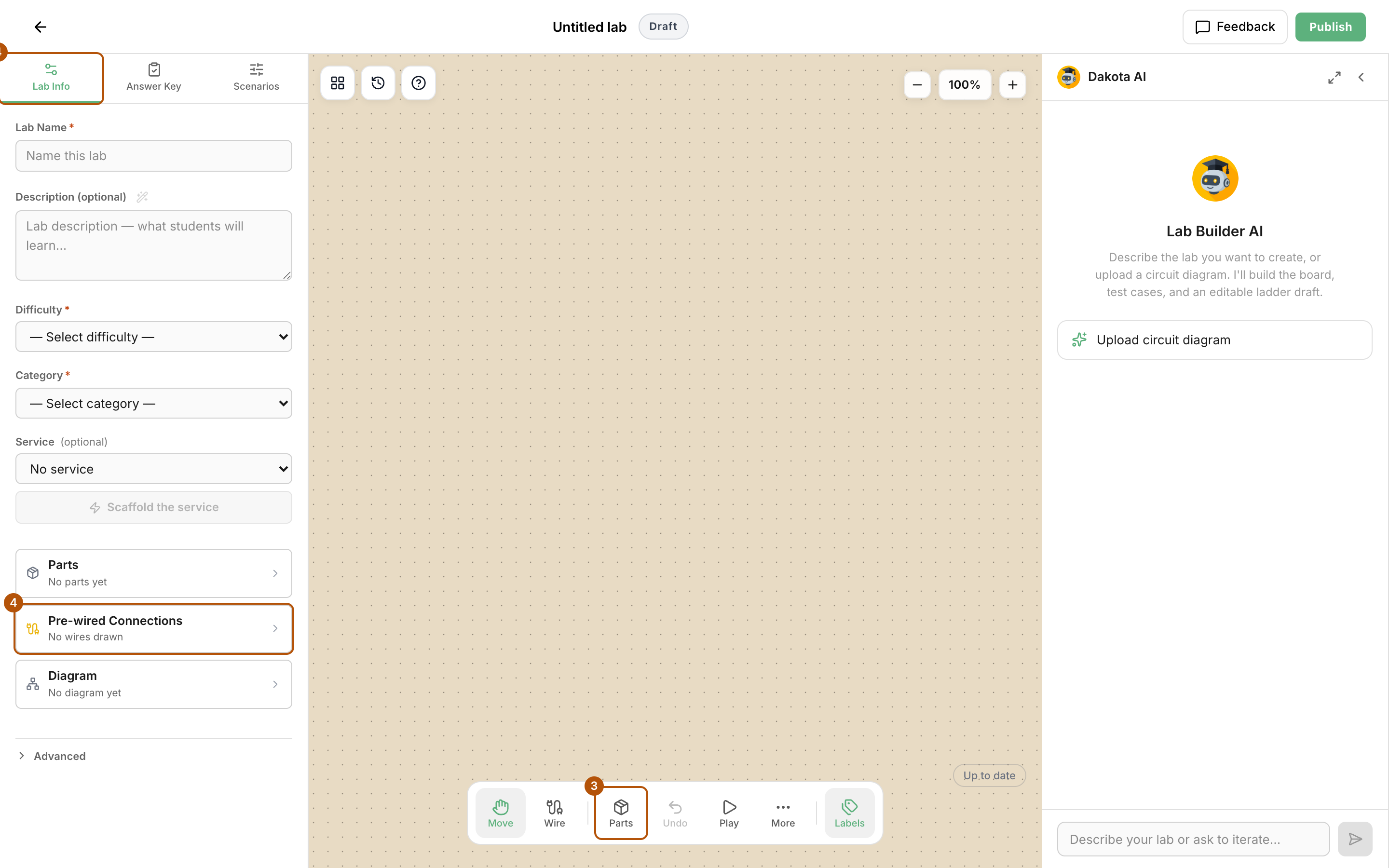
Add parts with Parts, then fill in the Lab Info tab. Pre-wired Connections are listed there too. -
On the Answer Key tab, choose Answer Key Wiring and use Wire to draw the correct connections. Then add objectives (what the circuit must do to score), or choose Ask Dakota to write objectives.
-
On the Scenarios tab, choose which lab types you offer: Wire, Install and Debug.
-
Choose Play and pick a lab type under Test as to try the lab the way a student will.
-
Choose Publish. Check that everything under Readiness passes, then choose Publish again.
Common problems
- Publish is blocked. Fix each unchecked item under Readiness. Common ones: a lab title, at least one part on the board, at least one answer key wire, at least one objective, a difficulty and a category, and power on the board.
- “Offered as at least one scenario.” Turn a lab type back on under Scenarios.
- Something looks wrong in the Lab Builder. Choose Feedback in the top bar to tell us.